¶ Running Excap Studio on Linux (Experimental Guide)
¶ Preface
Hi everyone! We’ve heard from many users running VRChat on Linux — great news! As an experimental effort, we’ve successfully launched Excap Studio on Linux using Steam’s Proton, Valve’s open-source Windows compatibility layer.
⚠️ Important: This is an experimental, community-tested approach. Compatibility may vary across distributions, kernel versions, or hardware. Feedback is highly encouraged — please share your results (successes and failures) to help us improve official Linux support.
¶ Prerequisites
- A Linux system (tested on CathOS, an Arch-based distribution; other Steam-compatible distros should work).
- Excap Studio Portable v1.0.17-f37f505 (temporary build base on V1.0.17).
¶ Current Limitations
- ✅ Standalone Mode (OSC/Local UDP): Fully functional.
- ❌ SteamVR Integration: Not yet supported.
- ❌ Camera Tracking: Disabled (no camera access via Proton).
- ⚠️ Automatic Serial Port Detection: Broken under Proton — manual COM port binding required (see Step 4).
¶ Setup Instructions
¶ 1. Install Steam for Linux
Install the official Steam client. Package names vary by distro:
| Distribution | Command |
|---|---|
| Arch / Manjaro / CathOS | sudo pacman -S steam |
| Debian / Ubuntu | Download .deb from store.steampowered.com |
| Fedora / RHEL | sudo dnf install steam |
| openSUSE | sudo zypper install steam |
✅ Proton is pre-installed and enabled by default in modern Steam (Steam > Settings > Steam Play). No extra configuration needed.
💡 Proton translates Windows API calls to Linux-native equivalents (including optimized Vulkan/DXVK graphics), making it far lighter and faster than a VM.
¶ 2. Add Excap Studio to Your Steam Library
- Extract the downloaded ZIP:
unzip "Excap Studio_V1.0.17-f37f505.zip" -d ~/excap-studio - In Steam:
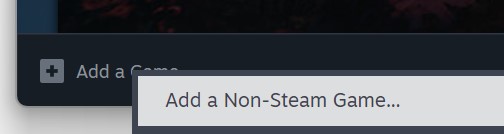
→ Click “Library” → Bottom-left “Add a Game…” → “Add a Non-Steam Game…”
→ Browse to~/excap-studio/Excap Studio.exe→ Add Selected Programs.
- Right-click Excap Studio in your library → Properties → Compatibility tab:
✅ Enable "Force the use of a specific Steam Play compatibility tool"
📦 Select Proton 10.0 (or latest stable Proton version). - Launch! If the app crashes or hangs:
→ In Properties > General > Launch Options, add:
(This enables verbose logging for troubleshooting.)--debug
¶ 3. Grant Serial Port Permissions
Linux restricts raw serial access to privileged users. To let Excap Studio communicate with your tracker receiver (e.g., CH340-based USB dongle):
-
Plug in your receiver and check detection:
ls -l /dev/ttyUSB*Expected output (example):
crw-rw---- 1 root uucp 188, 0 Jan 15 17:02 /dev/ttyUSB0🔍 Note the group name (here:
uucp). Common groups by distro:Distribution Default Serial Group Ubuntu / Debian dialoutArch / Manjaro / CathOS uucpFedora / RHEL dialoutoruucpopenSUSE dialoutAlpine uucp -
Add your user to the correct group:
sudo usermod -aG uucp $USER # Replace 'uucp' if your distro uses 'dialout' -
Log out and back in (or reboot) for group changes to take effect.
💡 On non-Bash shells (e.g., Zsh in CathOS), run
bashfirst to ensure command compatibility.
¶ 4. Manually Bind the Serial Port (Critical Step)
Excap Studio does not auto-detect /dev/ttyUSB* devices as Windows COM ports. You must manually map your physical port to a COM identifier inside Proton’s virtual drive.
¶ Find Your Proton Prefix Directory
Proton creates isolated Wine prefixes per app. Locate Excap Studio’s prefix:
ls -lt ~/.steam/steam/steamapps/compatdata/
→ Identify the folder with the most recent created timestamp (matches when you added Excap Studio to Steam).
→ Its name is your <APPID> (e.g., 2193456789).
¶ Discover the Mapped COM Port
List Proton’s DOS device symlinks:
ls -l ~/.steam/steam/steamapps/compatdata/<APPID>/pfx/dosdevices/
Look for a line like:
lrwxrwxrwx 1 user user 16 Jan 20 20:27 com33 -> /dev/ttyUSB0
✅ This means /dev/ttyUSB0 is exposed to Windows apps as COM33.
⚠️ Your COM number (e.g., COM33) will vary — use the one pointing to your /dev/ttyUSB*.
¶ Configure Excap Studio to Use It
Edit the config file:
nano ~/excap-studio/resources/data/ExcapData.json
Add this line as a new top-level key (just before the final }):
"COM": "COM33"
📌 Formatting rules:
- Use straight ASCII quotes (
"), not curly/smart quotes. - Place a comma after the previous key (e.g., after
"BodyHeight": 180.7). - Ensure valid JSON syntax (no trailing commas, proper brackets).
✅ Before:
{
  "trackers": [],
  "skeleton": {
    "HmdOffset": 10.0,
    "NeckLen": 10.1,
    // ... other skeleton values
    "BodyHeight": 180.7
  }
}
✅ After:
{
  "trackers": [],
  "skeleton": {
    "HmdOffset": 10.0,
    "NeckLen": 10.1,
    // ... other skeleton values
    "BodyHeight": 180.7
  },
  // Don't forget the comma after the previous key!
  "COM": "COM33"
}
🔁 Save the file and restart Excap Studio. The USB icon should light up. Power on your trackers — they should connect and appear online.
¶ 5. Using the Software
- If a CH340 driver installer window appears: close it — Linux kernels include built-in CH340 drivers.
- ✅ OSC Mode: Works fully. Auto-discovery usually succeeds; if not, manually enter your target IP/port in settings.
- ✅ A-Pose Calibration: Both the software button and the physical button on trackers function correctly.
¶ Support & Feedback
🔹 Report issues (with --debug logs) to Excap Discord channel.
🔹 Specify your:
- Linux distro & kernel version (
uname -r) - Steam + Proton version
- Receiver model &
lsusboutput - Exact error messages or screenshots
Thank you for testing — your feedback shapes the future of Excap Studio on Linux! 🐧✨